
















Downloadlinks
Lees eerst
Installatiehandleiding
Microsoft Visio 2024 Standard Bind installeren en activeren (stap voor stap)
Volg de onderstaande instructies om Microsoft Visio 2024 Standard Bind te activeren en te installeren op uw Windows-pc.
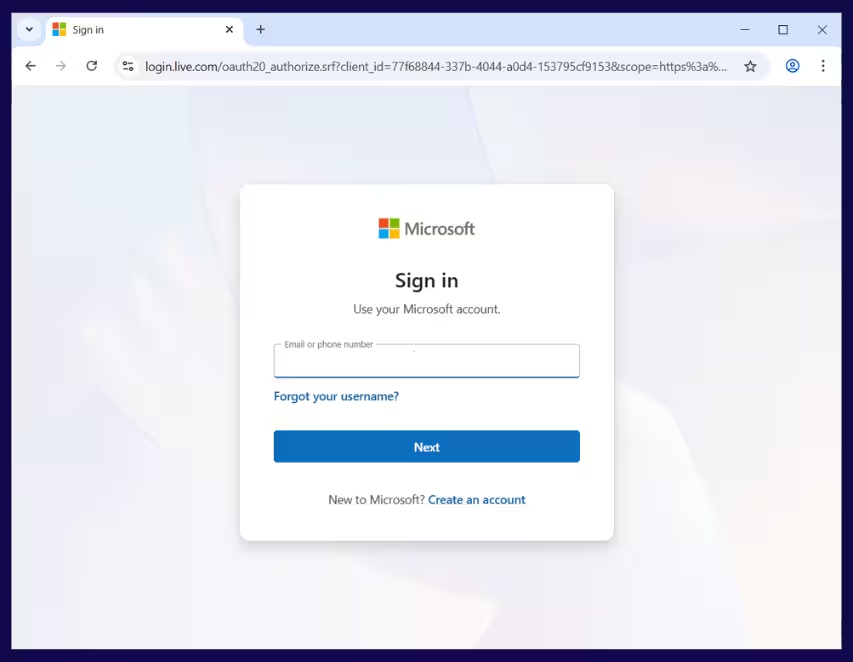
Stap 1 – Meld u aan bij uw Microsoft-account
Ga naar de Microsoft-aanmeldpagina en log in met het Microsoft-account waarop u Microsoft Visio 2024 Standard Bind wilt activeren.
Tip: Gebruik later hetzelfde account wanneer u Visio installeert en opent.
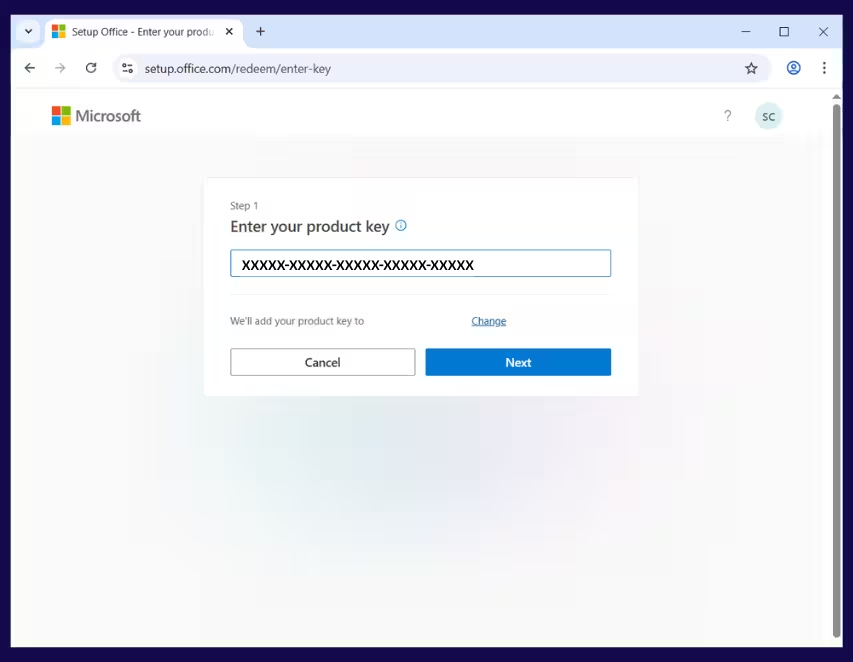
Stap 2 – Voer uw productsleutel in
Na het aanmelden voert u de 25-tekens Visio-productsleutel in die u heeft ontvangen en klikt u op Volgende.
Zodra dit is bevestigd, wordt de licentie gekoppeld aan uw Microsoft-account.
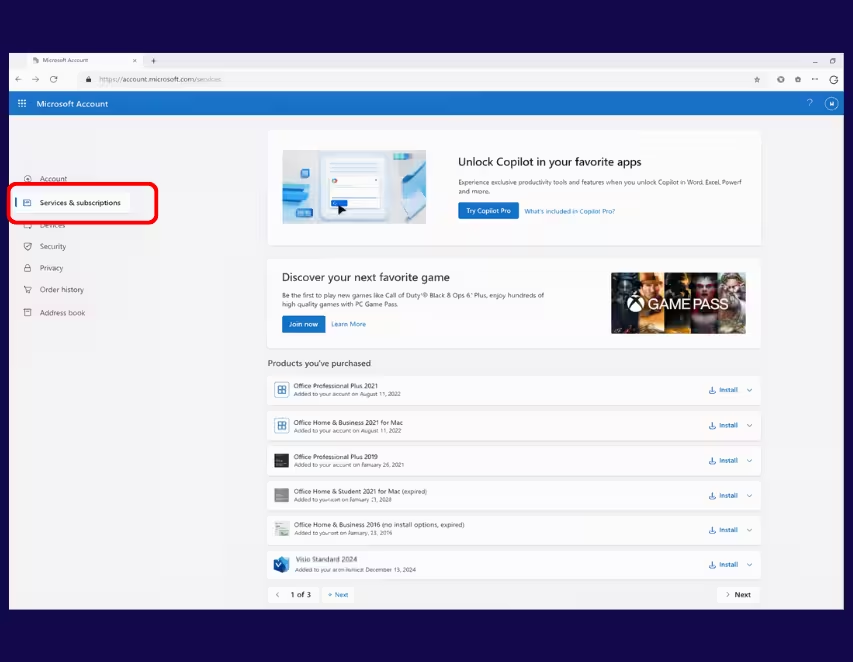
Stap 3 – Vind uw product in Services en abonnementen
Nadat de productsleutel is ingewisseld, opent u de pagina van uw Microsoft-account en gaat u naar Services en abonnementen.
Daar ziet u uw geactiveerde Microsoft Visio 2024 Standard Bind staan.
Stap 4 – Download het Visio-installatieprogramma
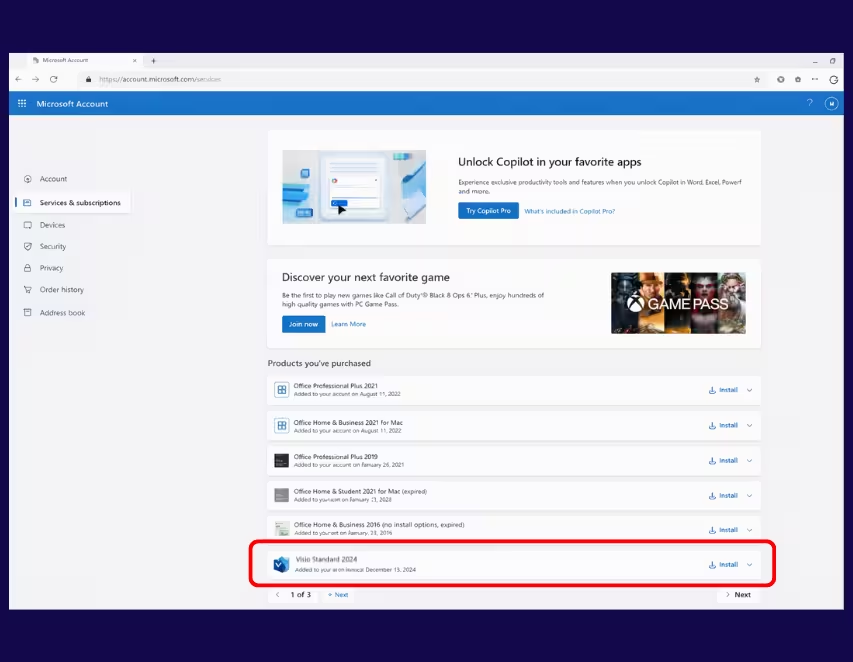
Zoek in de sectie Services en abonnementen naar Microsoft Visio 2024 Standard Bind en klik op Installeren.
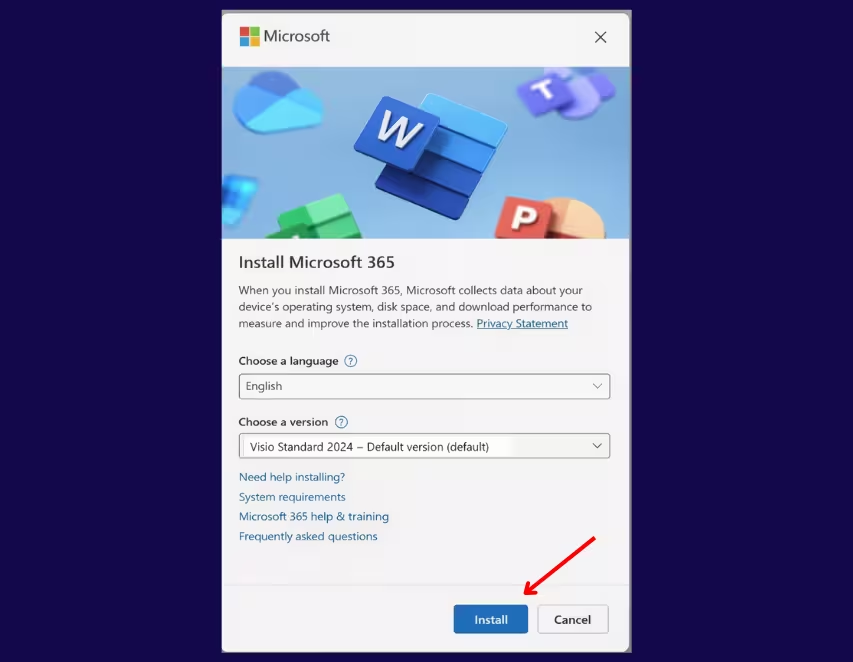
Klik opnieuw op Installeren naast uw Visio-product om de download te starten.
Stap 5 – Voer het installatieprogramma uit
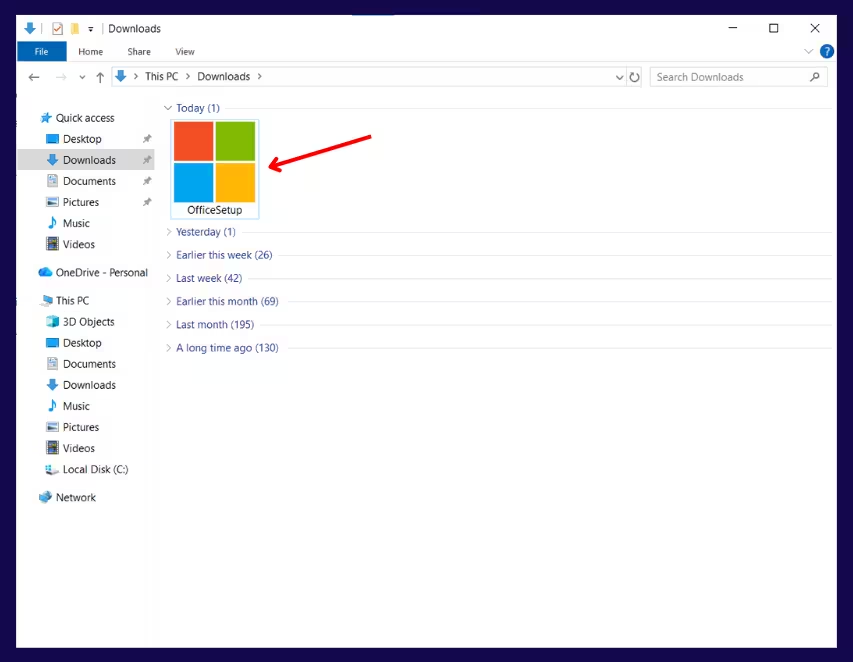
Zoek het gedownloade installatiebestand en dubbelklik erop om de installatie te starten.
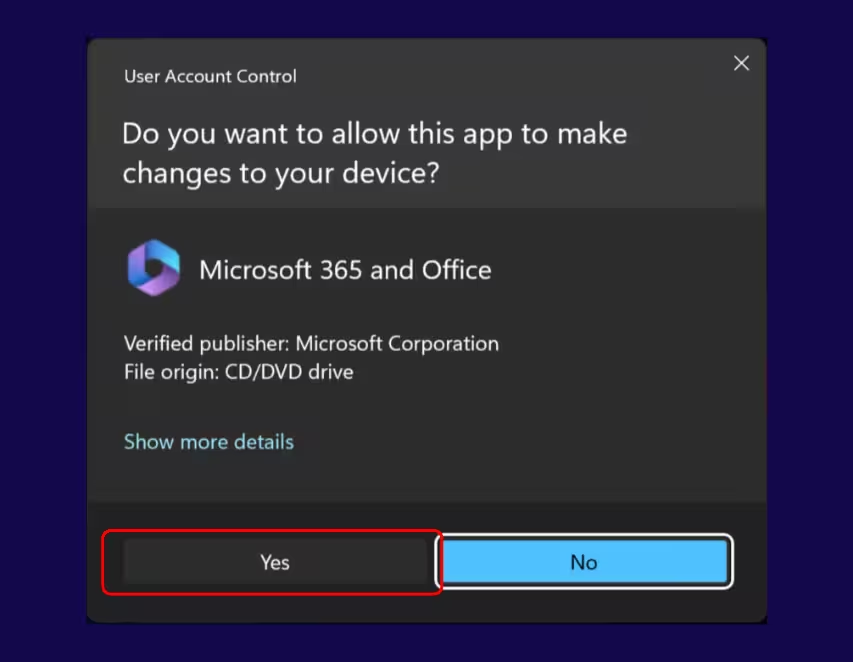
Stap 6 – Sta wijzigingen toe
Als Windows een beveiligingsmelding toont, klik op Ja om Visio toe te staan wijzigingen op uw apparaat aan te brengen.
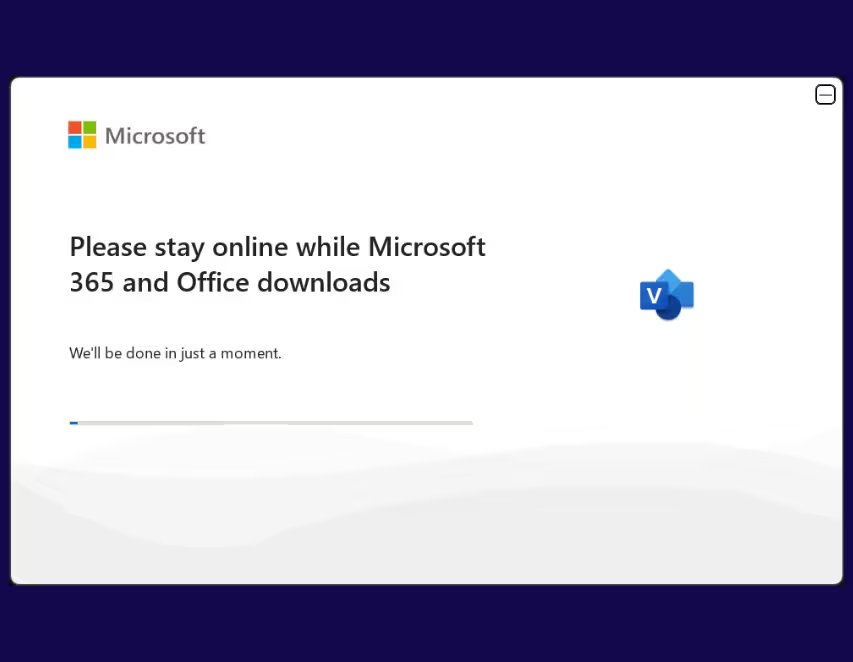
Stap 7 – Wacht tot de installatie is voltooid
Wacht totdat de installatie is voltooid. Dit kan enkele minuten duren.
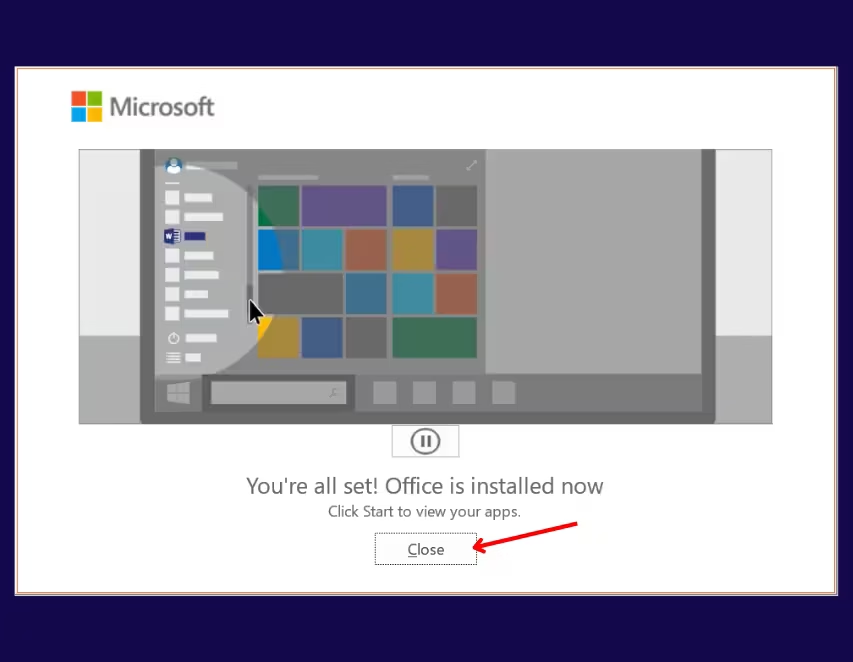
Stap 8 – Voltooi de installatie
Wanneer u Visio wordt voor u klaargemaakt ziet, is de installatie bijna voltooid.
Klik na voltooiing op Sluiten.
Activatiehandleiding
Stap 1 – Open Microsoft Visio
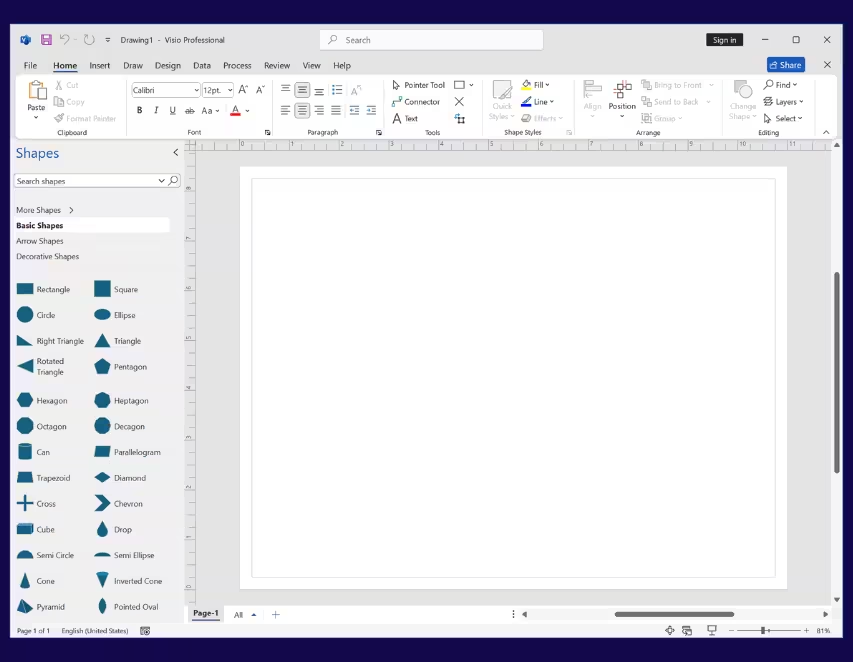
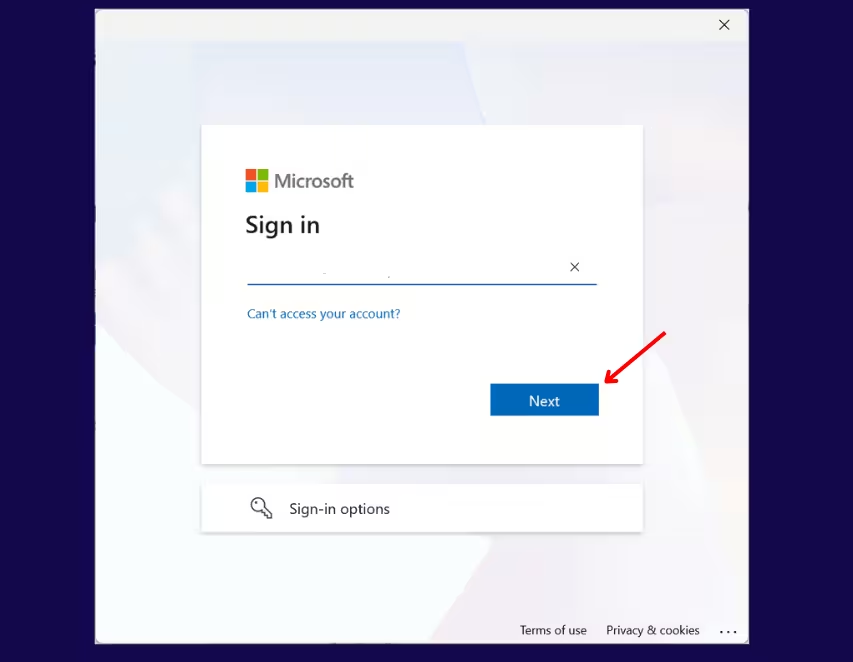
Stap 2 – Meld u aan bij uw Microsoft-account
Wanneer daarom wordt gevraagd, meldt u zich aan met het Microsoft-account dat u heeft gebruikt om uw Microsoft Visio 2024 Standard Bind-productsleutel in te wisselen.
Stap 3 – Bevestig uw account
Controleer of het juiste Microsoft-account wordt weergegeven en klik vervolgens op Doorgaan.
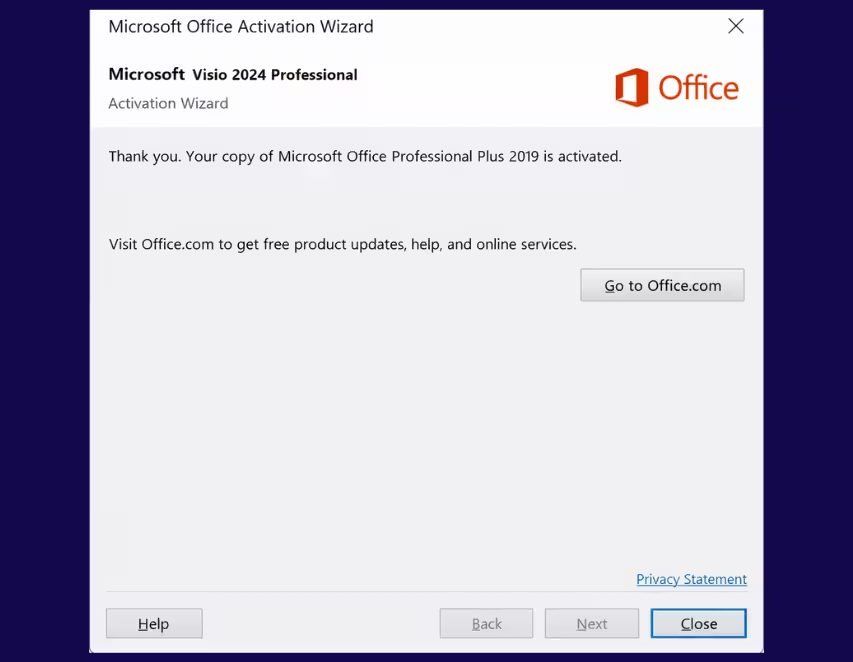
Stap 4 – Controleer de activatiestatus
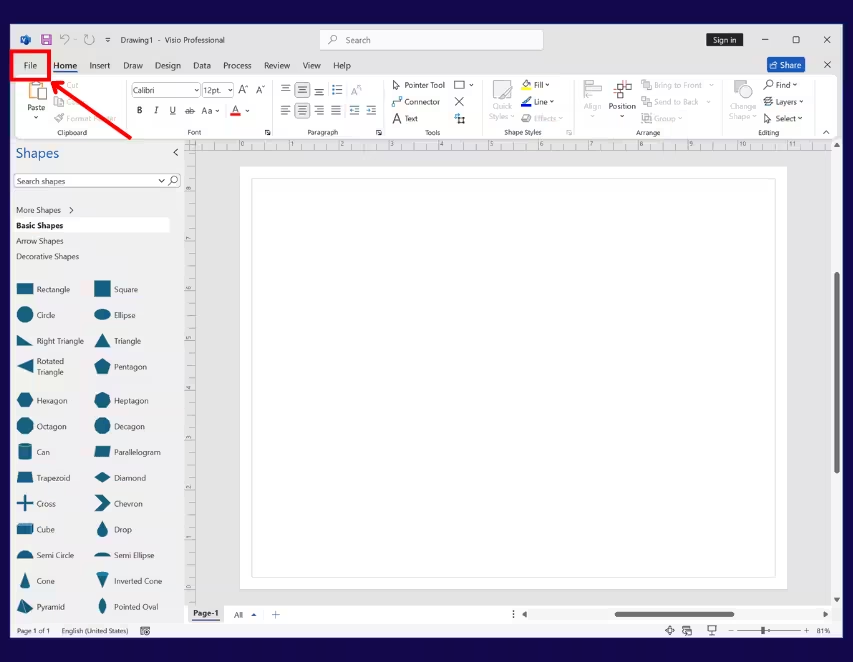
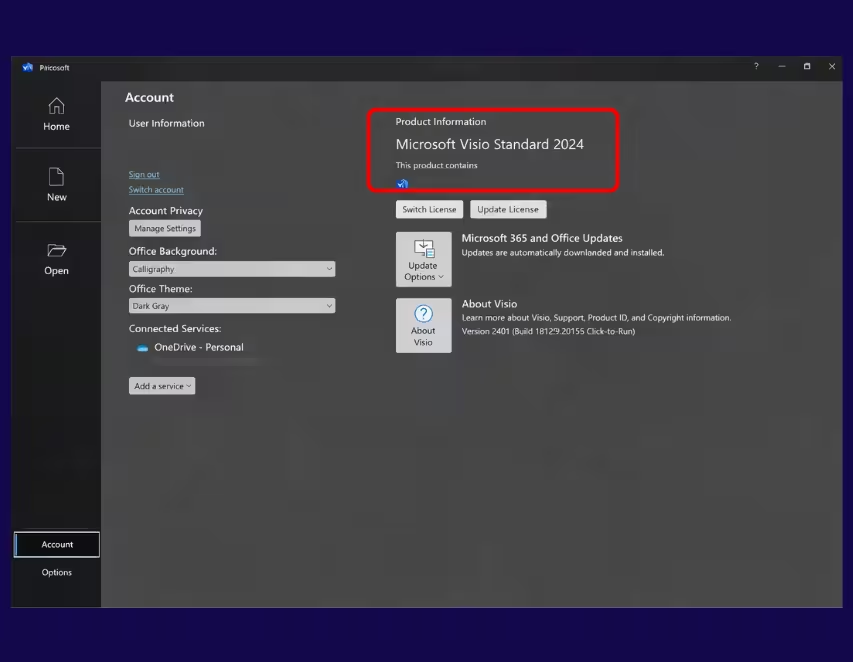
Ga naar Bestand → Account.
Onder Productinformatie zou u moeten zien
Microsoft Visio 2024 Standard– Geactiveerd.
Activatie voltooid
Microsoft Visio 2024 Standard Bind is nu volledig geactiveerd en klaar voor gebruik.