















Downloadlinks
Lees vóór gebruik
Installatiehandleiding
Microsoft Excel installeren en activeren (stap voor stap)
Volg de onderstaande instructies om Microsoft Excel 2021 op je Mac OS te installeren en te activeren.
Stap 1 – Microsoft Excel 2021 downloaden
Download het installatiebestand van Microsoft Excel 2021 via de downloadlink die we je na je aankoop hebben gestuurd.
Tip: Zorg ervoor dat het bestand volledig is gedownload voordat je de installatie start.
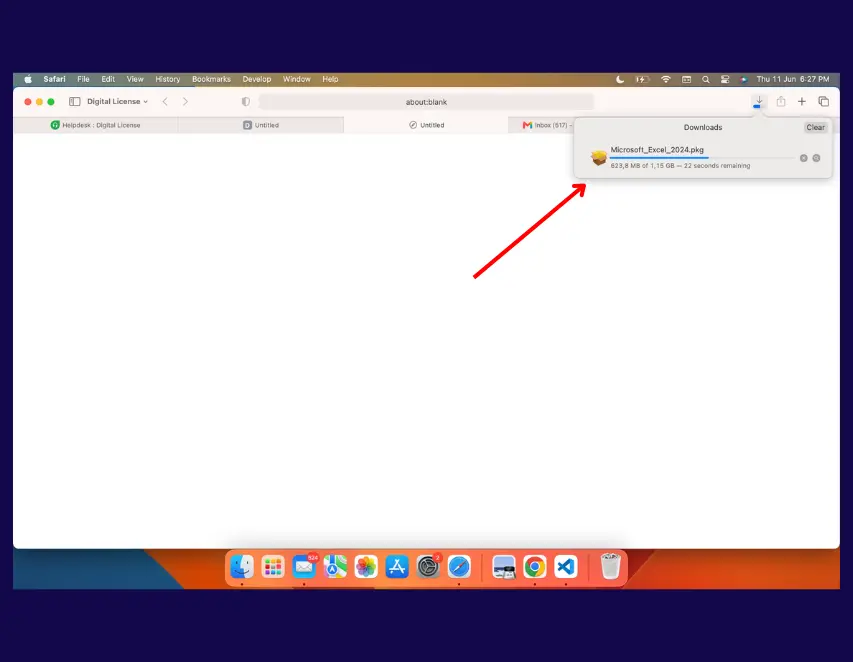
Stap 2 – Open het gedownloade bestand
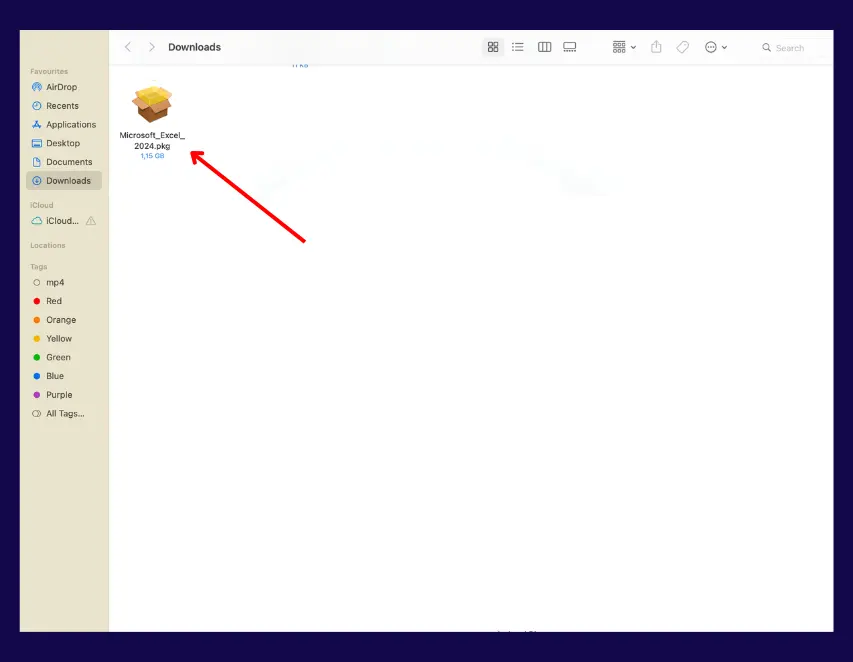
Zoek het gedownloade installatiebestand op je Mac, meestal in de map Downloads.
Dubbelklik op het bestand om het te openen en het installatieproces te starten.
Stap 3 – Voer het installatieprogramma uit
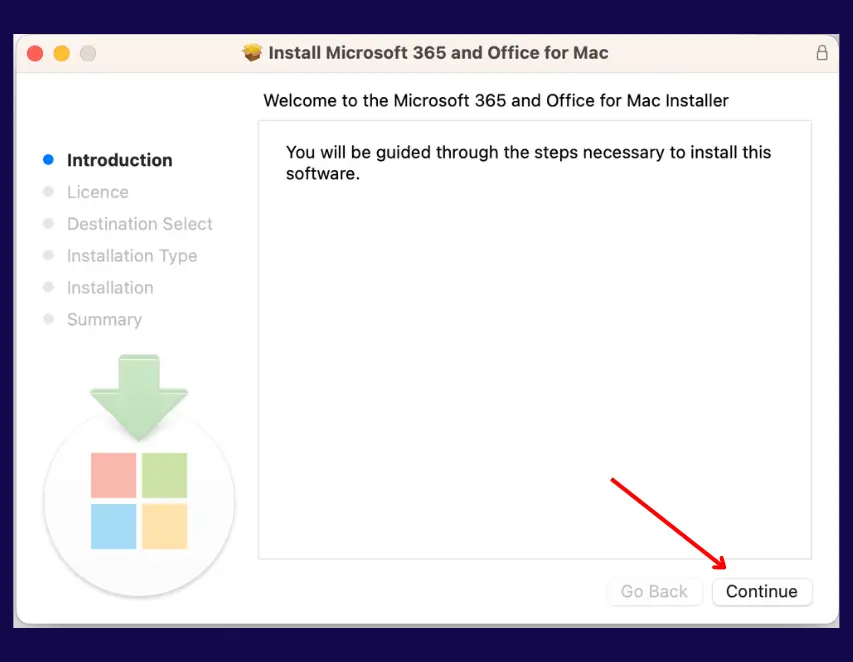
Wanneer het installatieprogramma wordt geopend, volg je de instructies op het scherm om Microsoft Excel 2021 op je apparaat te installeren.
Klik op Doorgaan, accepteer de licentieovereenkomst en ga verder met de installatie.
Stap 4 – Voltooi de installatie
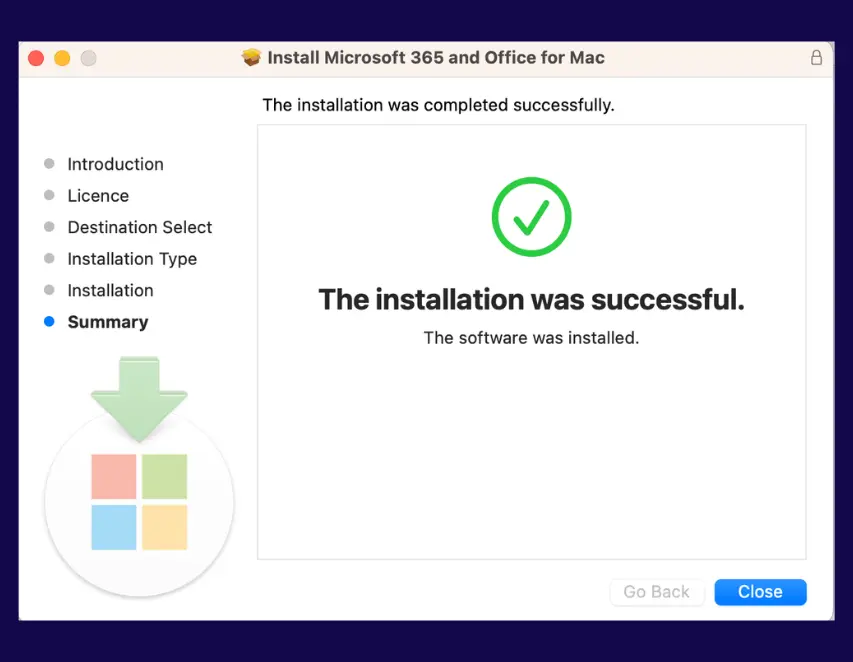
Wacht tot de installatie is voltooid.
Klik daarna op Sluiten.
Stap 5 – Open Excel nog niet
Nadat de installatie is voltooid, open Microsoft Excel nog niet.
Installeer en pas eerst het licentiebestand toe dat we je hebben gestuurd. Deze stap is vereist voordat je Microsoft Excel opent.
Licentie-installatiehandleiding
Installatiehandleiding voor licentiebestand
Volg de onderstaande instructies om je Microsoft Excel-licentiebestand op je Mac te downloaden, installeren en toe te passen.
Stap 1 – Download het licentiebestand
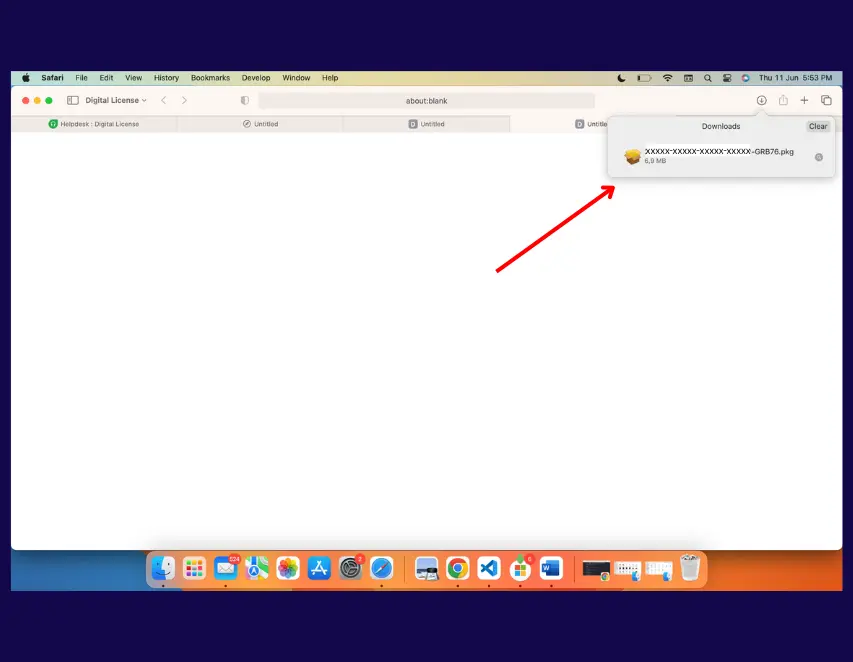
Download het licentiebestand via de link die we je na je aankoop hebben gestuurd.
Tip: Zorg ervoor dat het licentiebestand volledig is gedownload voordat je de installatie start.
Stap 2 – Start de licentie-installatie
Wanneer het licentie-installatieprogramma wordt geopend, volg je de instructies op het scherm om het licentiebestand te installeren en toe te passen.
Klik op Installeren en ga verder met de installatie.
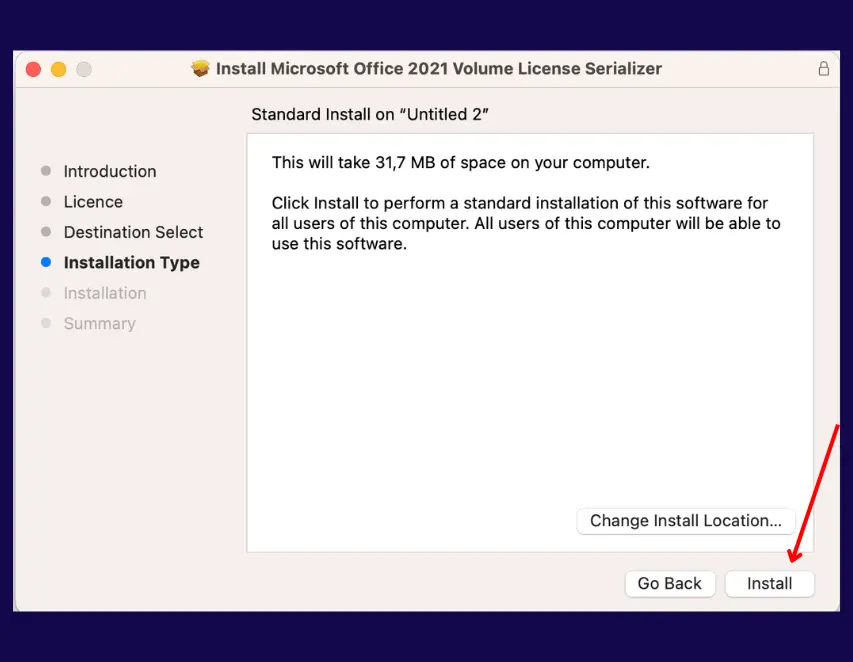
Stap 3 – Voltooi de licentie-installatie
Wacht tot de licentie-installatie is voltooid.
Klik daarna op Sluiten.
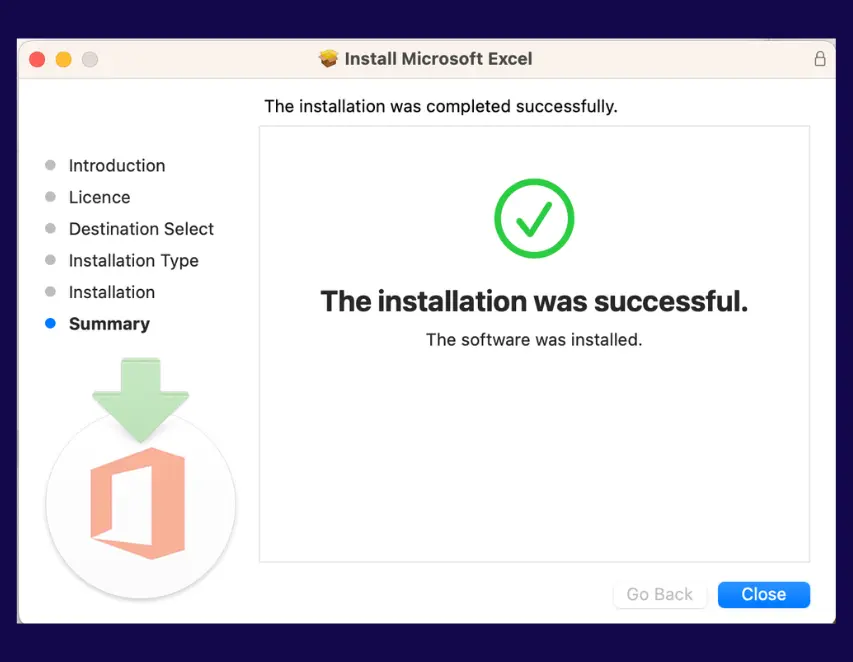
Stap 4 – Installatie voltooid
Het licentiebestand is nu succesvol geïnstalleerd.
Alles is klaar. Je kunt Microsoft Excel nu openen.
Activatieproblemen
Activeringsproblemen
Als Microsoft Excel niet correct wordt geactiveerd of als je een activeringsfout ontvangt, volg dan de onderstaande stappen.
Stap 1 – Download het resetbestand
Download het Microsoft Excel-resetbestand via de onderstaande link:
Microsoft Excel-resetbestand downloaden
Tip: Zorg ervoor dat het resetbestand volledig is gedownload voordat je het proces start.
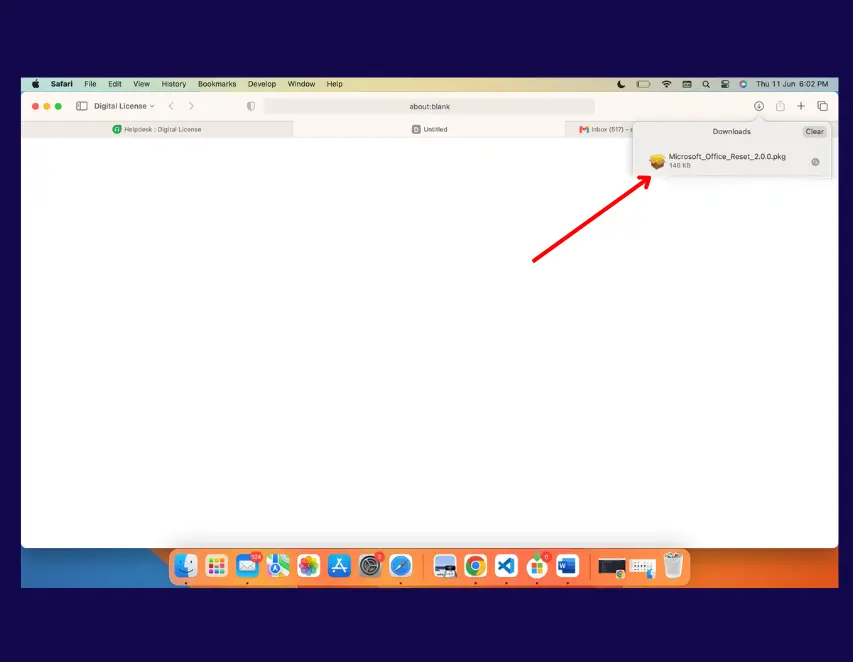
Stap 2 – Start het resetbestand
Zoek het gedownloade resetbestand op je Mac, meestal in de map Downloads.
Dubbelklik op het bestand om het te openen en het resetproces te starten.
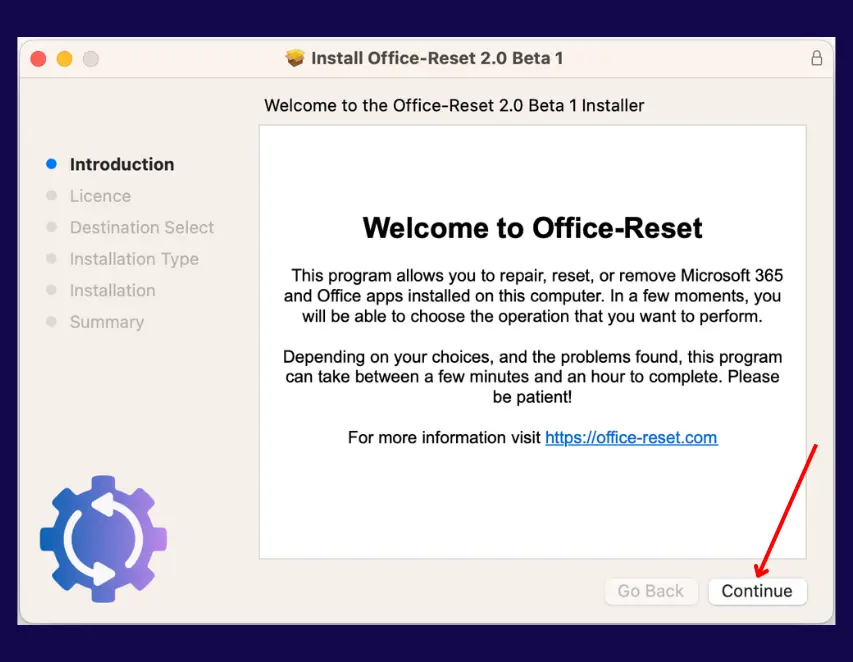
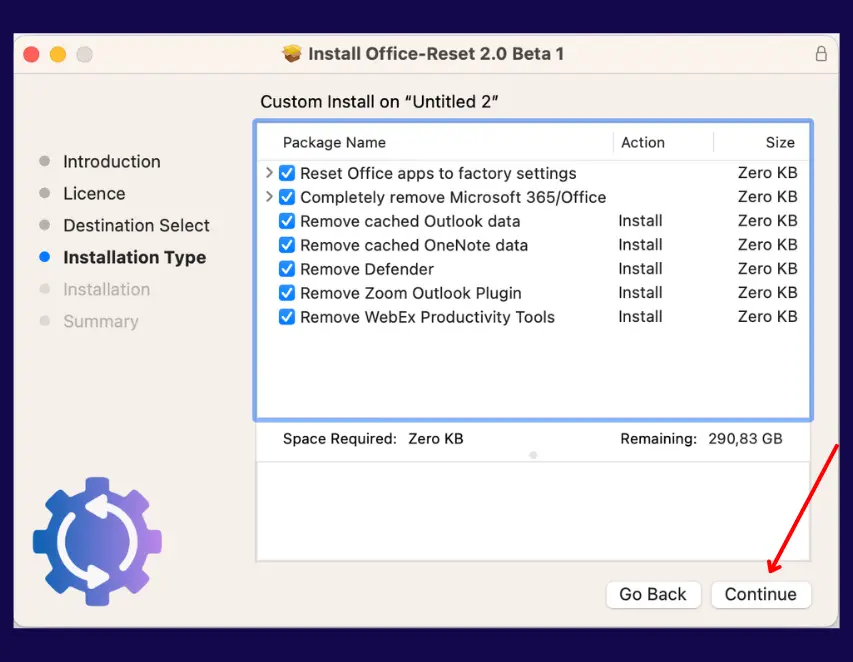
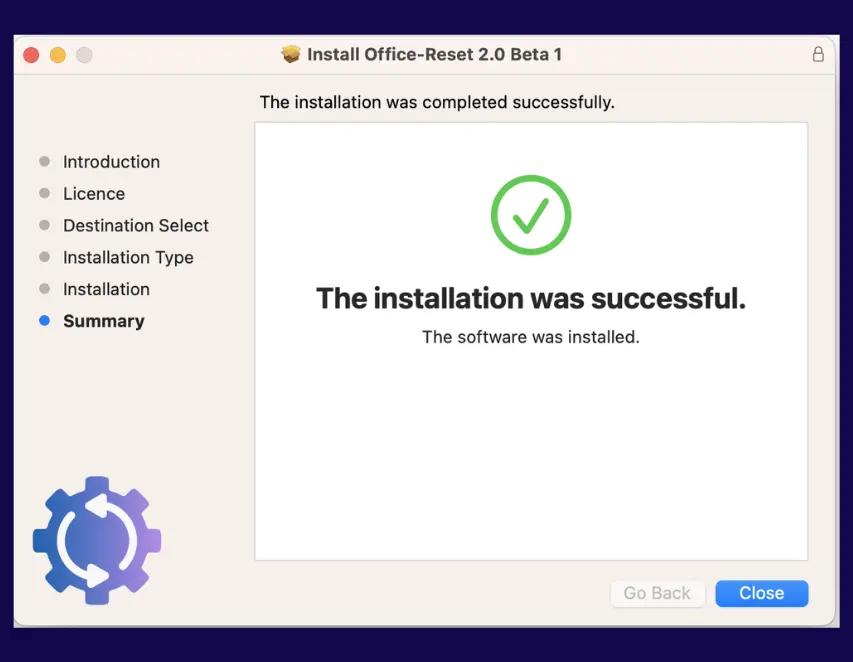
Stap 3 – Voltooi de reset
Volg de instructies op het scherm om het resetproces te voltooien.
Klik op Doorgaan en ga verder totdat het proces is voltooid.
Klik daarna op Sluiten.
Stap 4 – Start het installatieproces opnieuw
Nadat Microsoft Excel succesvol is gereset, start je het installatieproces opnieuw vanaf het begin.
Download het installatiebestand van Microsoft Excel 2021 opnieuw, installeer Microsoft Excel 2021 en installeer daarna het licentiebestand.
Stap 5 – Voltooi de activering
Nadat Microsoft Excel 2021 en het licentiebestand opnieuw zijn geïnstalleerd, open je Microsoft Excel.
Microsoft Excel zou nu geactiveerd moeten zijn en klaar moeten zijn voor gebruik op je Mac.